How to Create a Nabeba Account

Learn how to sign up, verify your phone number, and set up your personal or company account on Nabeba.

Step 1: Enter your phone number.
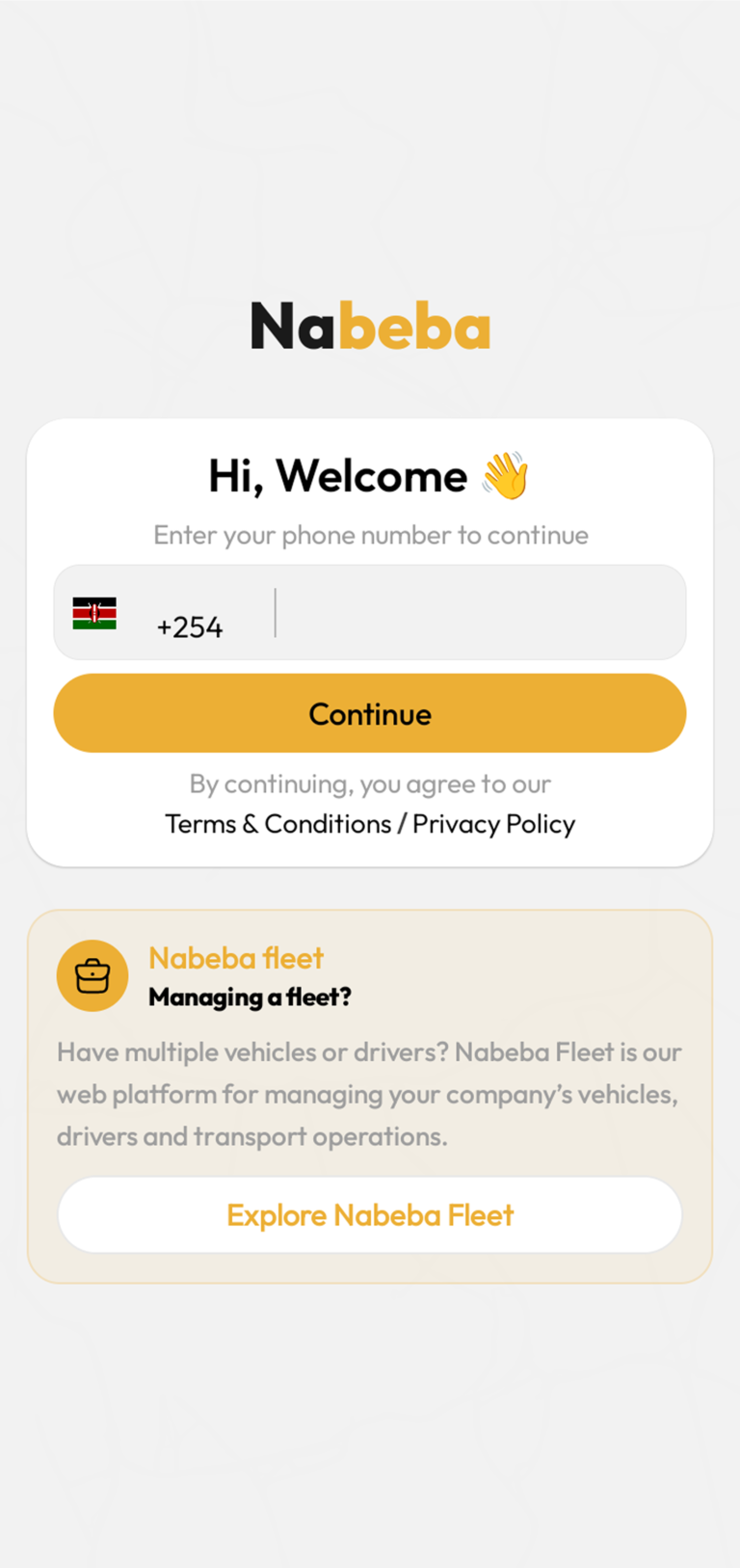
Open the Nabeba App, enter your active phone number and press Continue.

Ensure you enter the correct phone number and that it is active and accessible, as you will need it to verify your account.

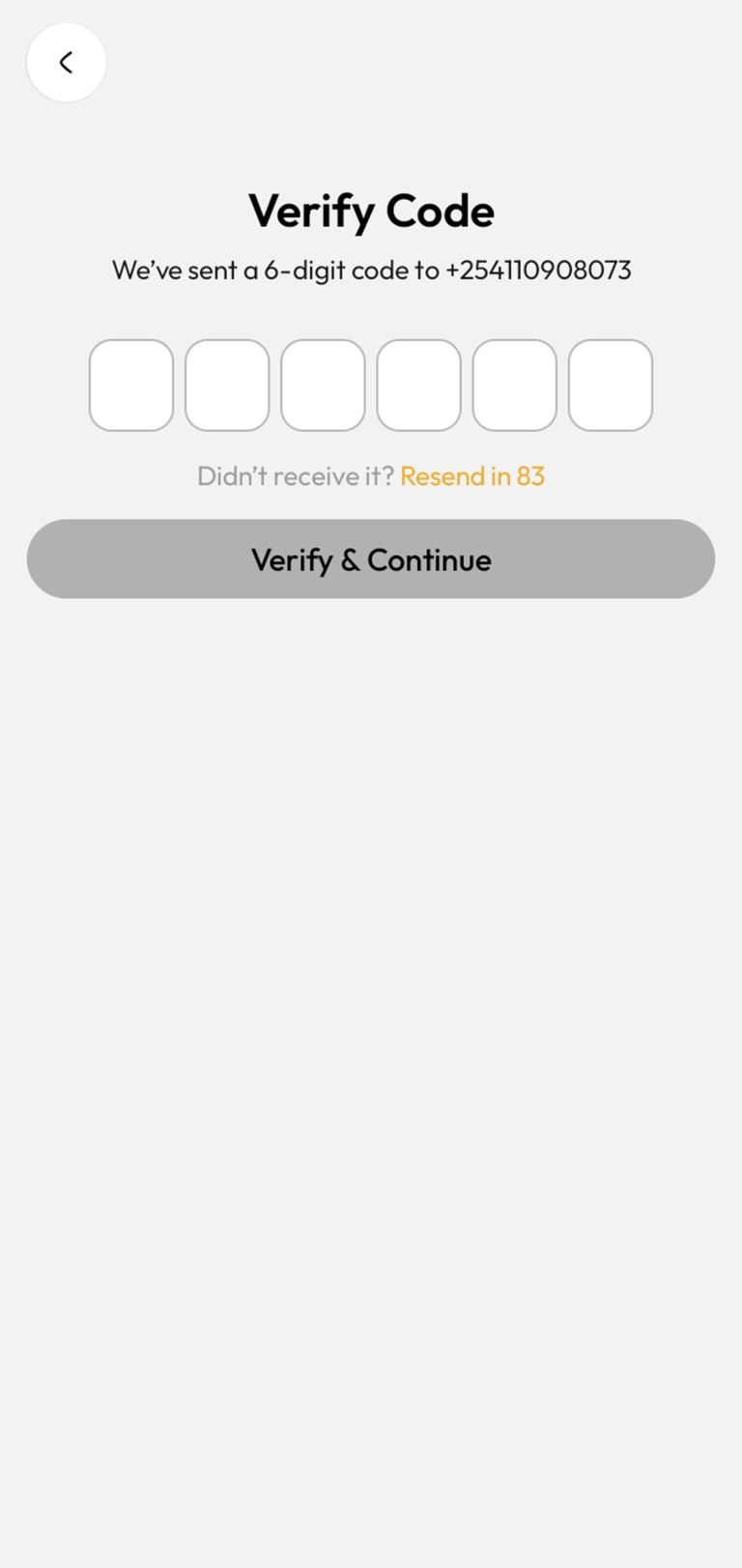
Step 2: Verify phone number (OTP)

On the Verify Code screen, enter the 6-digit verification code sent to your phone via SMS, then press Verify & Continue.

Be patient as the verification code may take a few moments to arrive. If you haven’t received it after waiting, select Resend to request another one.

Ensure your phone has network coverage and can receive SMS messages. If you request a new code, use the latest code sent to your phone.

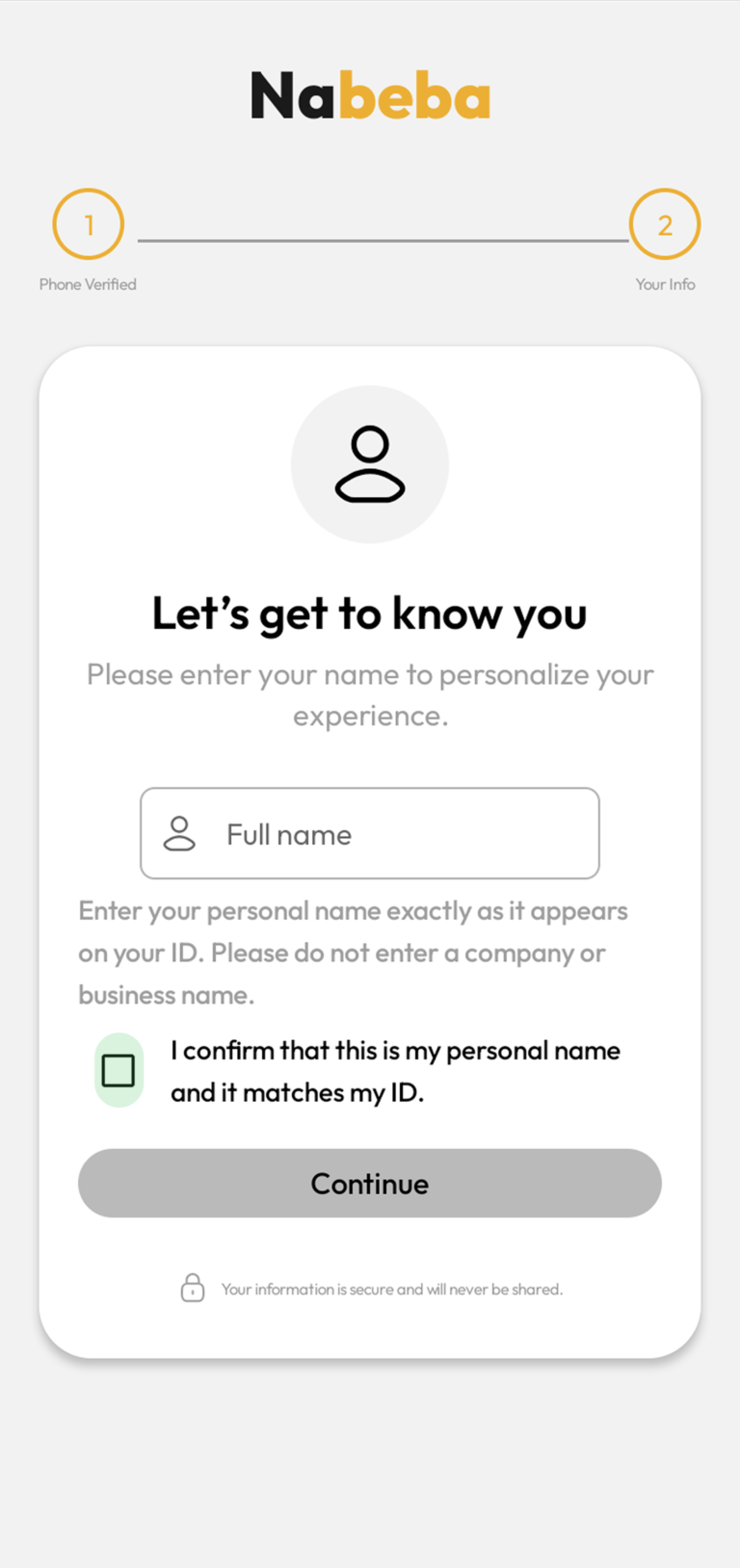
Step 3: Enter your personal details.

On the Let’s Get to Know You screen, enter your full name exactly as it appears on your National ID. Tick the confirmation checkbox below your details, then press Continue.

Do not enter a company name, business name, nickname or abbreviated name. Use your full legal name.

Step 4: Choose your service

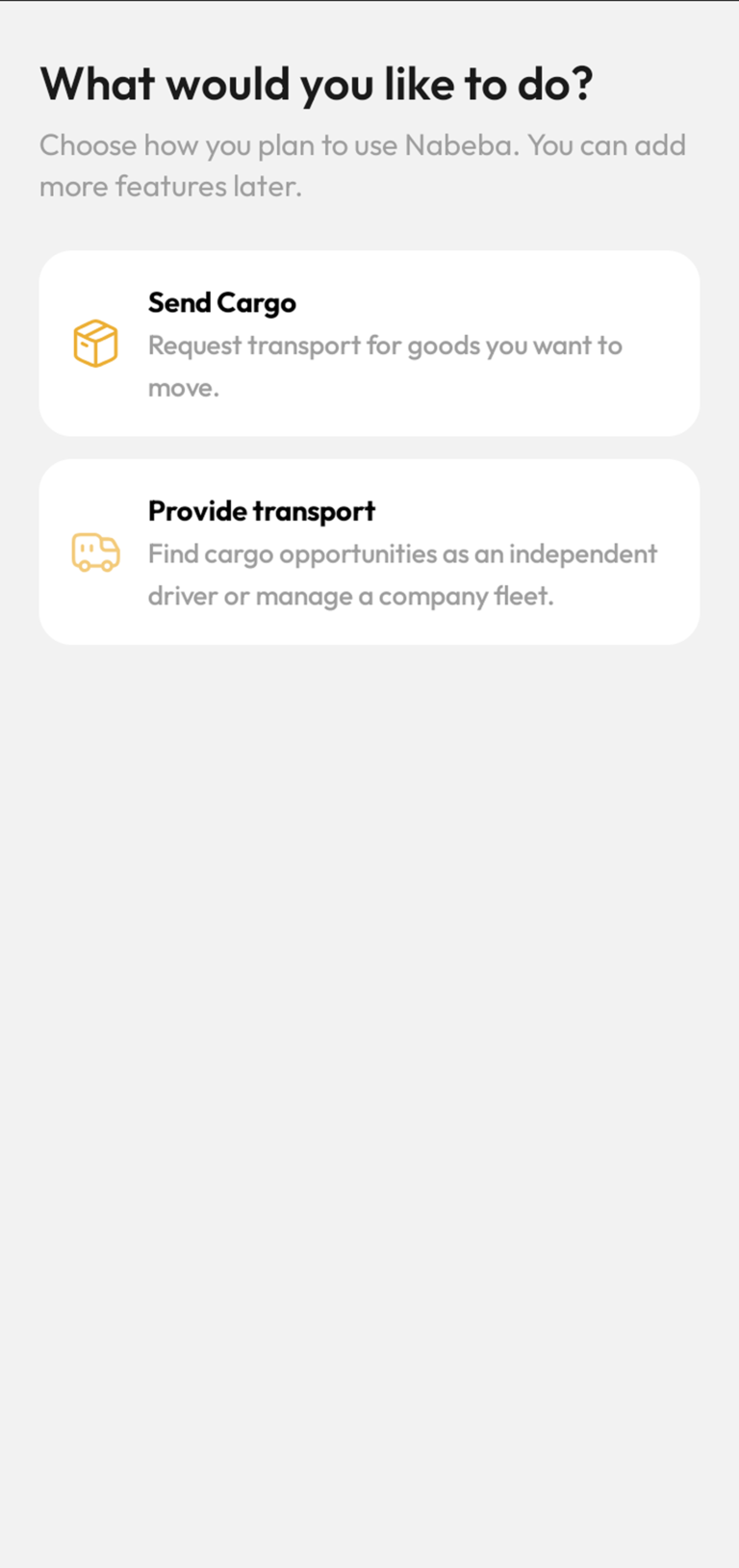
On the What Would You Like to Do? screen, select the service that best suits your needs:

Send Cargo

Request transportation for goods you want to send.

Provide Transport

Find cargo opportunities as an independent driver or manage a company fleet.

Choose the service that matches what you intend to do on Nabeba. This determines the type of account setup you will follow.

Step 5: Choose your account type.

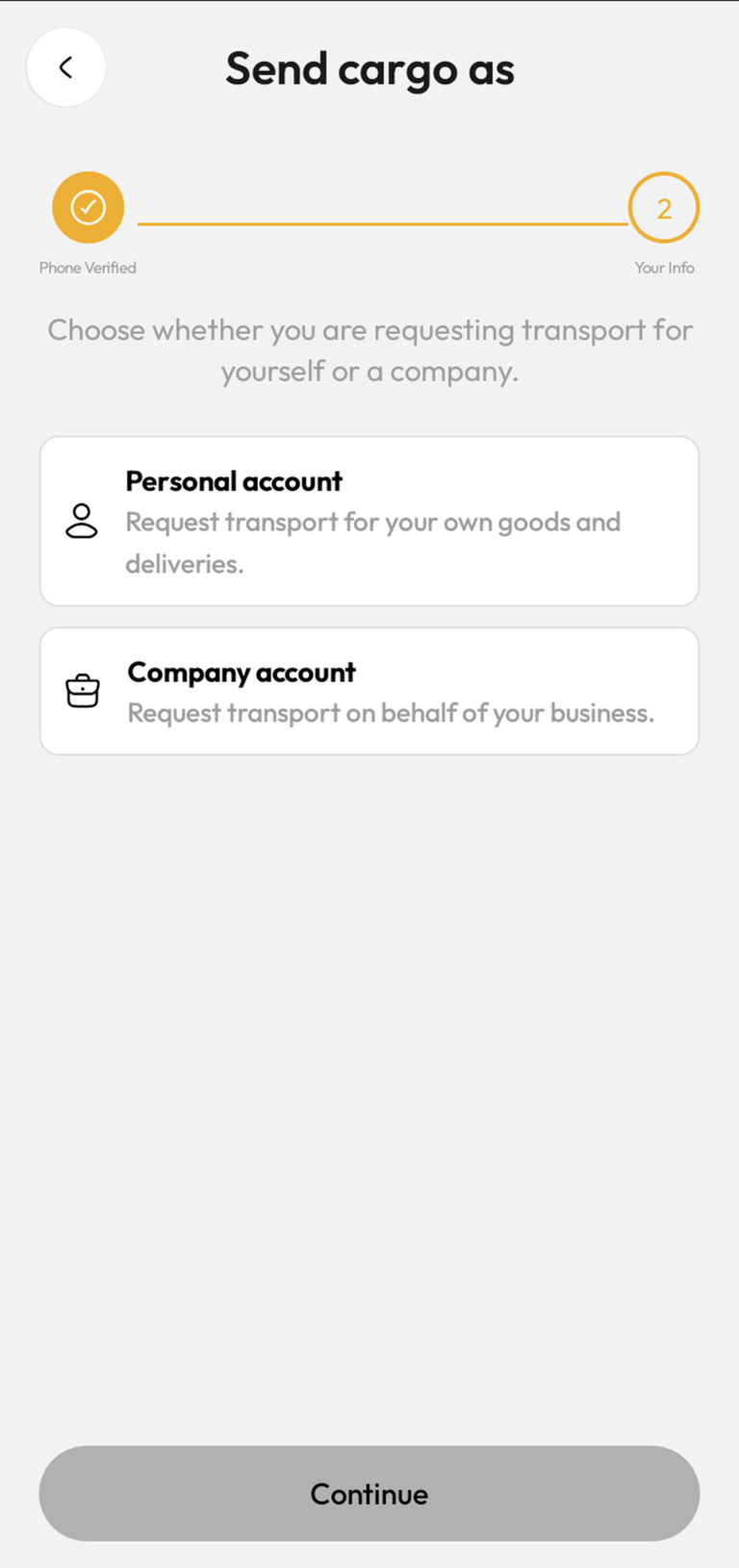
If you selected Send Cargo, the Send Cargo As screen will appear. Choose between:

Personal Account

Request transportation for your own goods and deliveries.

Company Account

Request transportation on behalf of your business.

Select the account type that best suits your needs, then press Continue.

If you are registering on behalf of a business, select Company Account. Have your company’s registration details ready before proceeding.

Step 6: Access your Home Screen

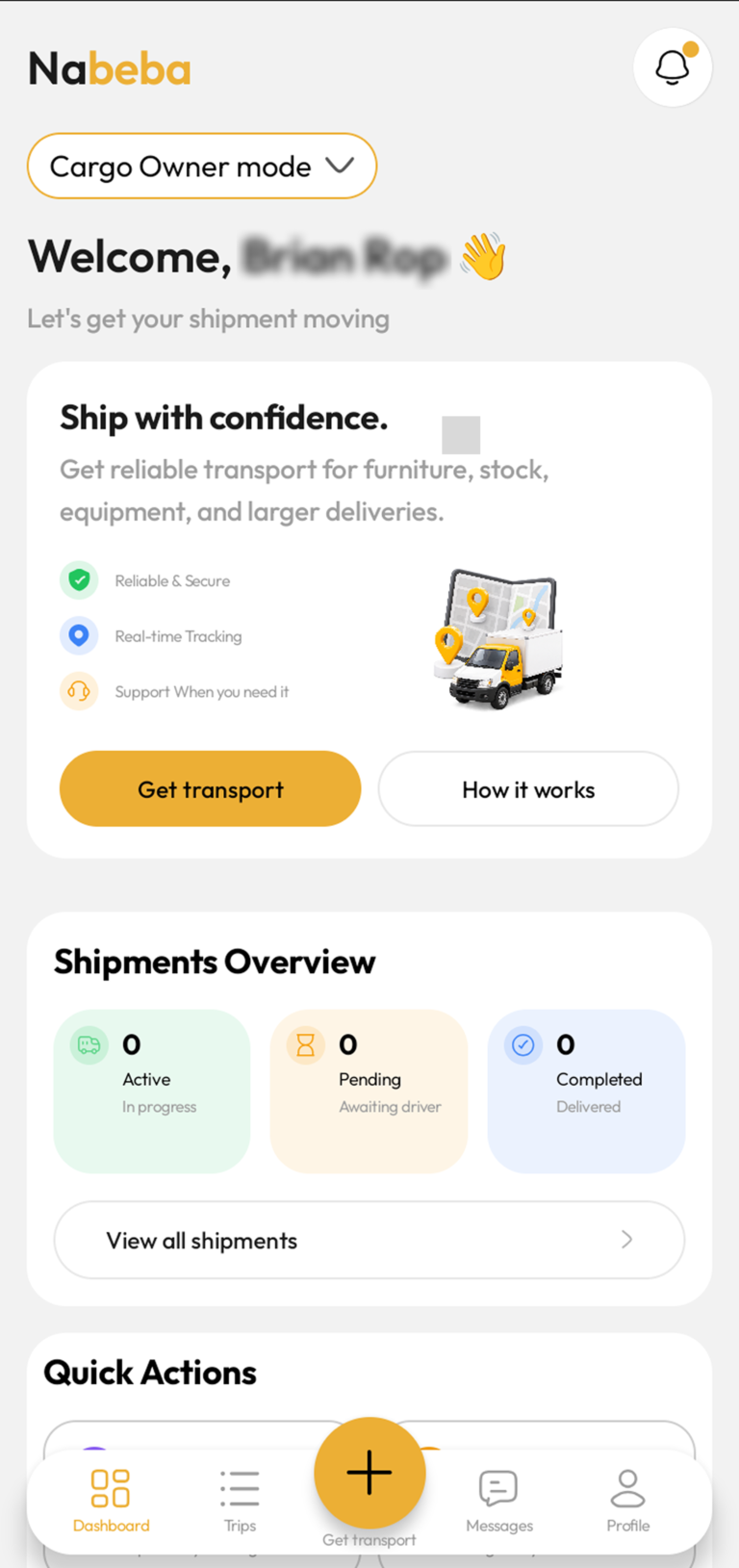
If you selected Personal Account, the Nabeba App Home Screen will open in Cargo Owner Mode.

You can now post your cargo requests or explore the app.

You have successfully reached the Cargo Owner Home Screen.

Step 7: Enter your company details.

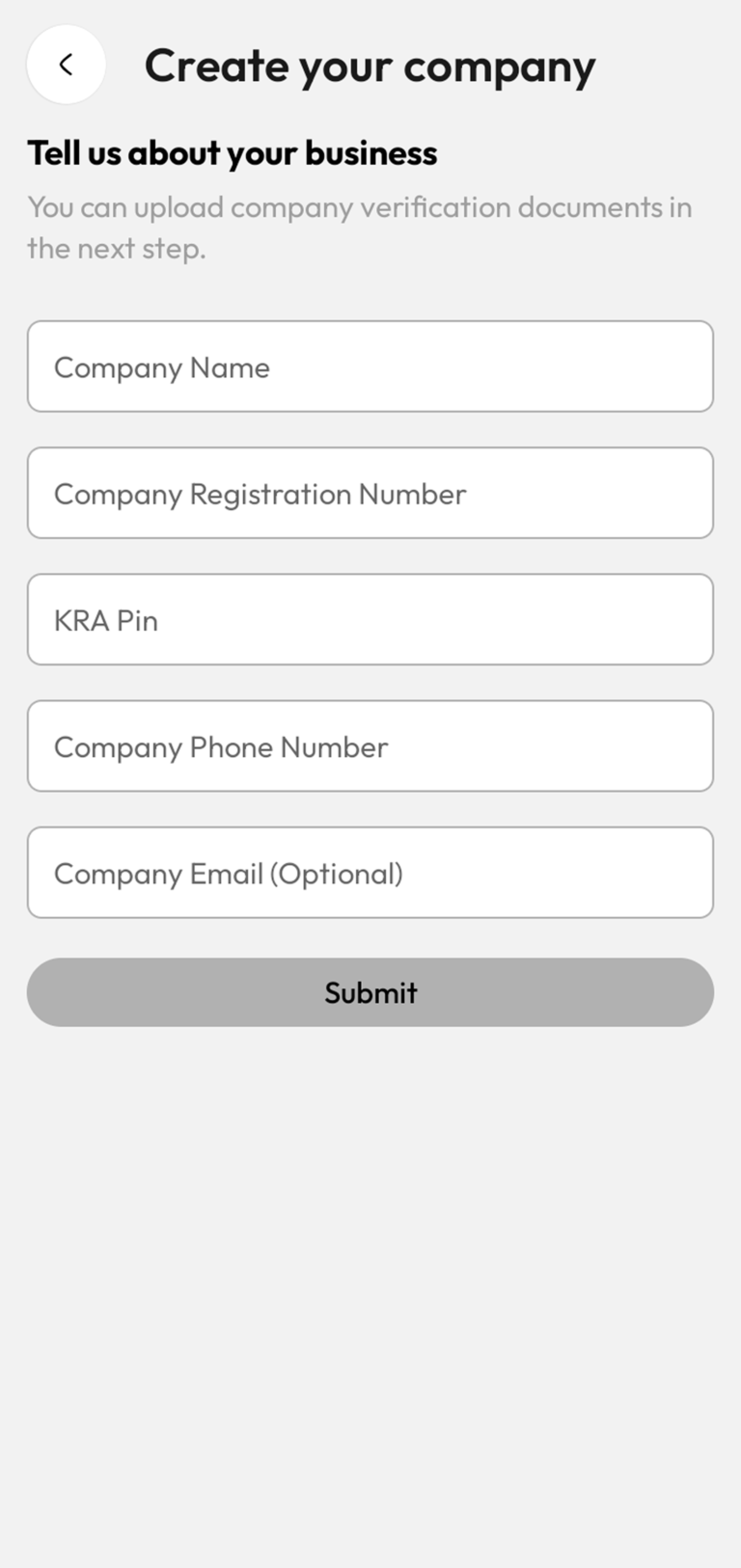
If you selected Company Account, the Create Your Company screen will appear. Enter the following details:

  • Company Name
  • Compay Registration Number
  • KRA PIN
  • Company Phone Number
  • Company email(Optinal)

Once you have entered the required information, press Submit.

Double-check your company details before submitting. Ensure the information matches your official business registration records.

Step 8: Choose how to proceed with company verification
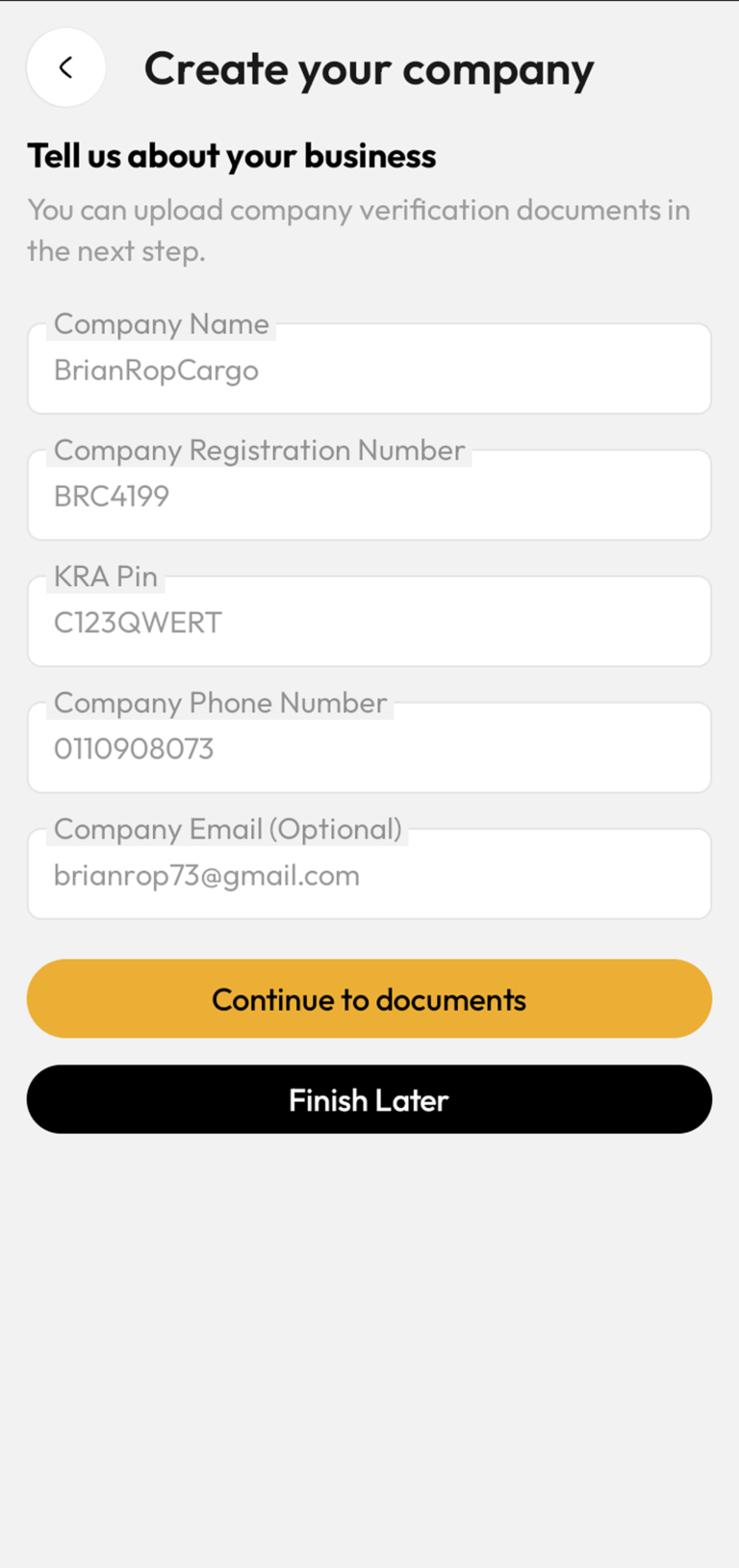
After submitting your company details, two options will appear:

Proceed to the Company Verification screen to upload your company’s official documents.

Skip the verification process for now and proceed to the Nabeba App Home Screen.

Selecting Finish Later does not complete your company verification. You will need to submit the required documents to complete the process.

Step 9: Upload your company documents.
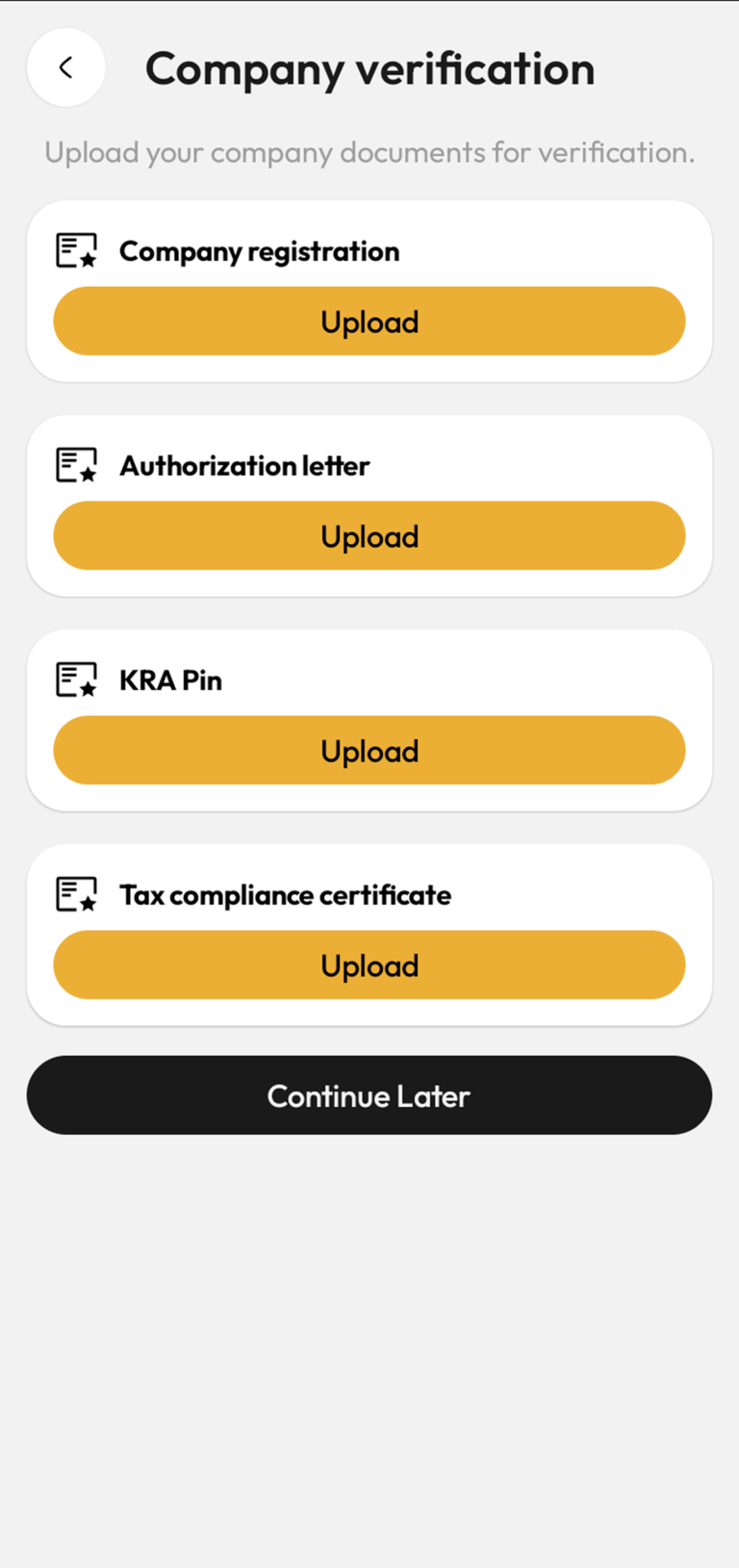
If you selected Continue to Documents, the Company Verification screen will open.

Upload all the required company documents, then press Continue Later to proceed to the Nabeba App Home Screen.

Ensure your documents are clear, readable and complete before uploading them. Avoid blurry, cropped or incomplete documents.

Step 10: Monitor your company's verification progress.
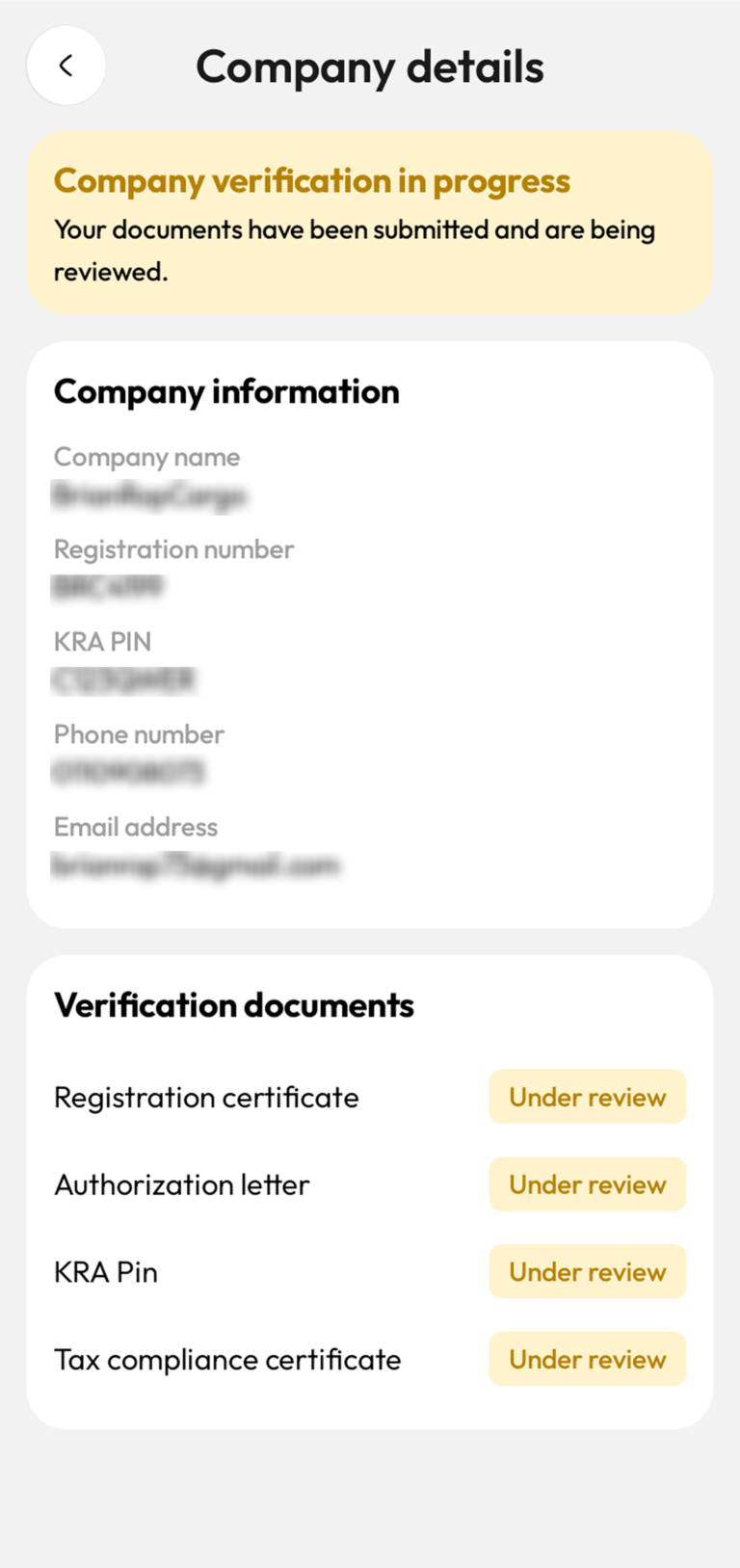
To check your company’s verification progress:

  1. On the Nabeba App Home Screen, navigate to the bottom navigation bar and select Profile.

  2. On the Profile page, select Company.

  3. The Company Details screen will open, where you can monitor your company’s verification progress.

Check your Company Details page periodically for updates on your verification progress.

You can now access the Nabeba App and explore the available features based on your selected account type.

Scroll to Top