
How to create a Fleet Acount.
Follow these steps to create your Fleet Portal account, enter your company information, submit documents for review and become familiar with the Dashboard.
- 5 - 8 mins
- Nabeba Fleet Portal
Before you begin
Have access to the email or Google Account you want to use, the fleet manager’s contact details, your registered company information and the required company documents.
Open Nabeba Fleet Portal in your browser.
Step 1: Open the fleet portal and choose account access.
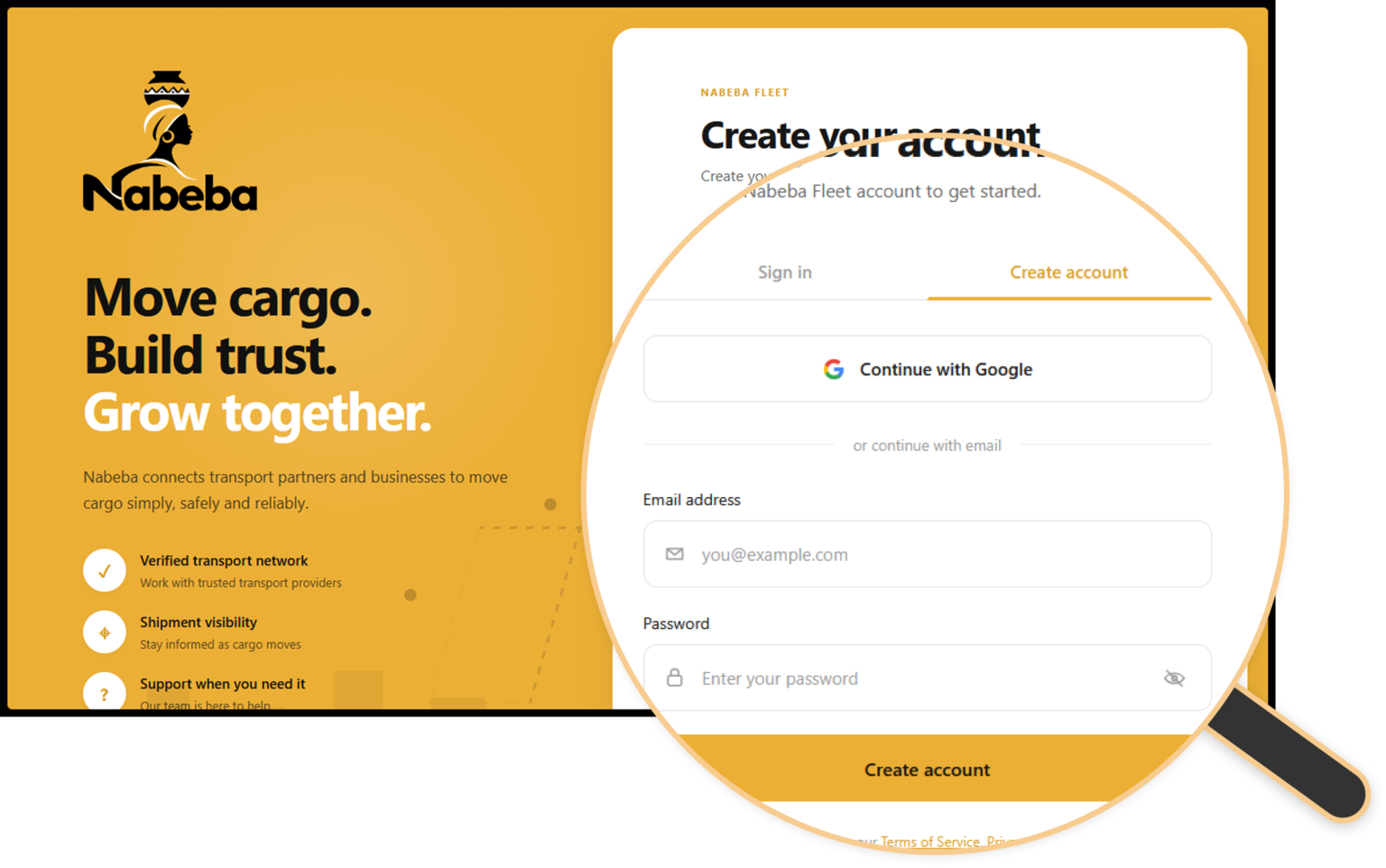
Open a web browser and go to https://transport.nabeba.com. The Nabeba Fleet Portal login page will open.
To create a new account, select Create account at the top of the page. Choose one of the following methods:
- Continue with Google: Click Continue with Google, choose your Google Account, then click Continue.
- Continue with email: Enter your email address, create a strong password, then click Create account.
If you already have an account, select Sign in and use either your Google Account or the email address and password you used to register.
- Tip
Bookmark the Fleet Portal address in your browser so you can return to it easily.
- Important
Use an email address or Google Account you can access. You will need the same account details when signing in again.
Step 2: Enter the fleet owner's details.
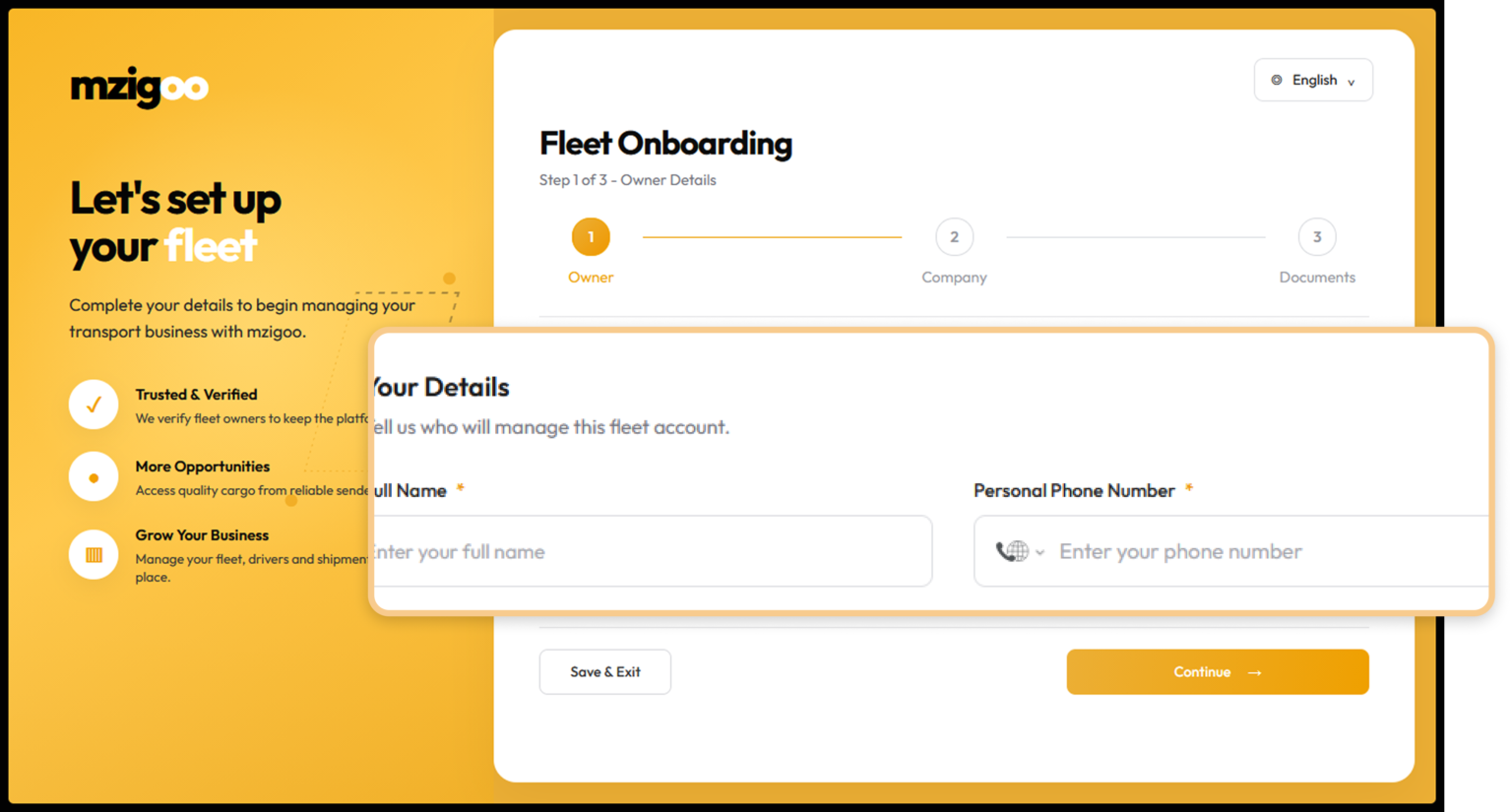
After creating your account, the Fleet Onboarding page opens. The first stage is Owner Details. Enter:
- Full Name – the name of the person who will manage the fleet account.
- Personal Phone Number – the manager’s personal contact number.
Click Continue to move to Company Details. You can also click Save & Exit to open the Dashboard.
- Tip
Enter the details of the person who will be responsible for managing this fleet account.
- Important
Make sure the personal phone number is accurate so the fleet manager’s contact information is correct.
Step 3: Enter the company's details.
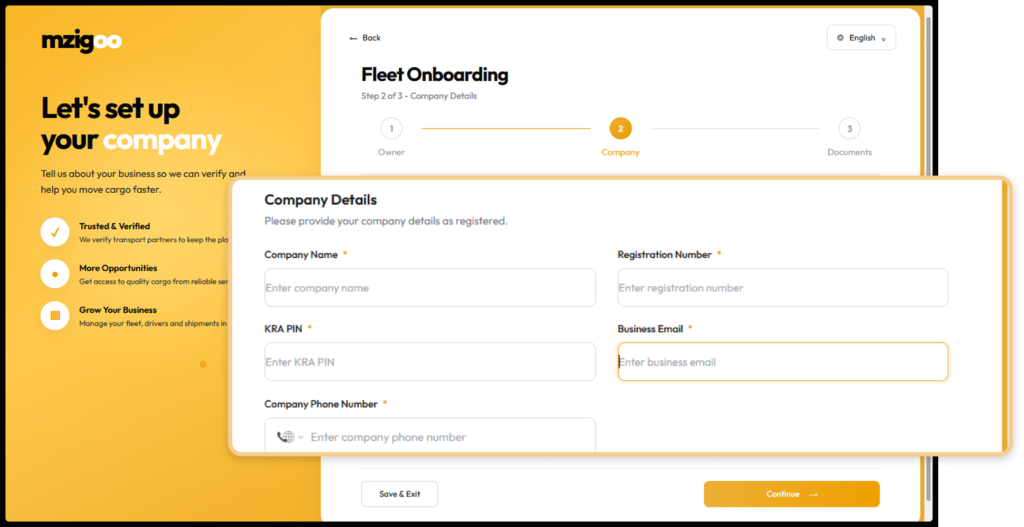
In the second onboarding stage, Company Details, provide the registered details of your business:
- Company Name
- Registration Number
- KRA PIN
- Business Email
- Company Phone Number
Click Continue to proceed to Company Documents. Click Save & Exit if you want to open the Dashboard instead.
- Tip
Have your company registration and KRA details available before completing this section.
- Important
Enter the company details as they appear on your official business records
Step 4: Upload the company's documents.
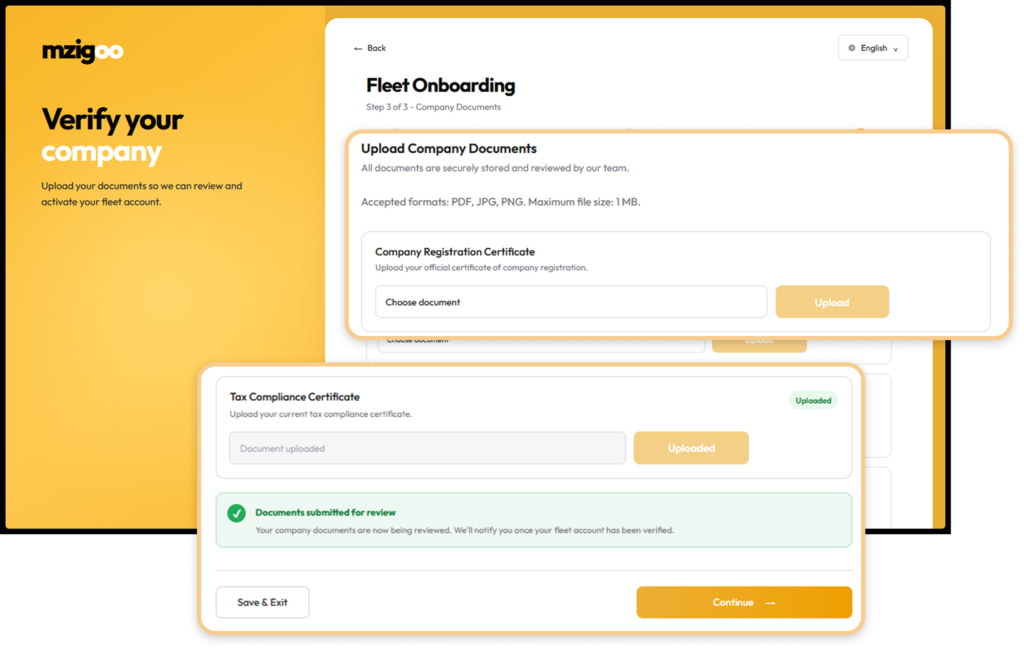
The third onboarding stage is Company Documents. Upload each required document by clicking Choose document, selecting the file, and then clicking Upload for that document.
- Company Registration Certificate
- KRA PIN Certificate
- Authorization Letter
- Tax Compliance Letter
Accepted file formats are PDF, JPG and PNG. Each file must be no larger than 1 MB.
When you have uploaded the documents, click Continue to submit them for review, complete the onboarding process and open the Dashboard. Save & Exit also opens the Dashboard.
- Tip
Check that you have selected the correct document for each upload section before clicking Upload.
- Important
Each document must be in PDF, JPG or PNG format and must not exceed 1 MB.
Step 5: Explore the Fleet Portal dashboard.
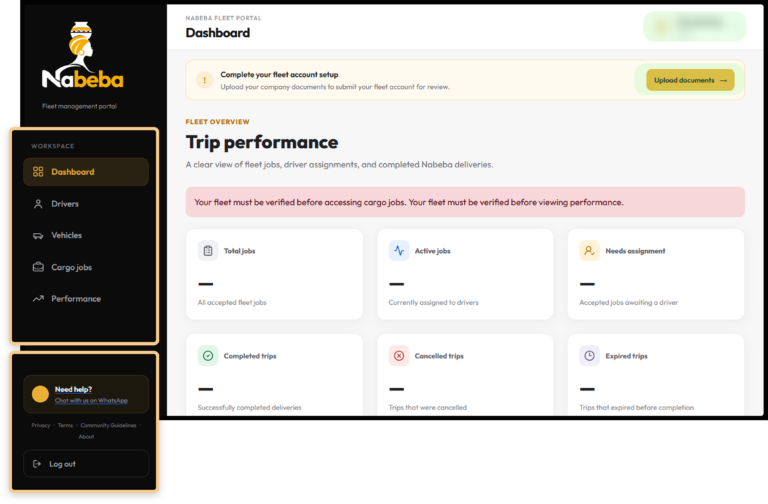
After onboarding, the Dashboard opens. It provides an overview of your fleet’s trip performance and access to the main areas of the portal.
Dashboard elements:
- Profile Access: The button at the top right opens your personal profile and company profile.
- Message banner: If required documents were not uploaded during account creation, a Complete your account setup message appears with an Upload documents button.
- Fleet Overview: A visual summary of trip performance, including fleet jobs, driver assignments, and completed Nabeba deliveries and their value.
Left-side navigation menu:
- Dashboard: Summary of trip performance and the starting screen after login.
- Drivers: Invite drivers, review join requests, and manage fleet teams.
- Vehicles: Add cargo vehicles, upload compliance documents, and manage driver assignments.
- Cargo Jobs: Find suitable cargo jobs and send offers on behalf of your fleet.
- Performance: Track completed trip value and each driver’s contribution.
- Need Help: Request support through WhatsApp.
- Log out: Exit the platform.
- Important - Performance is NOT payroll
The Performance section tracks completed trip value and each driver’s contribution. This information does not represent payroll or driver payouts.
- Verification Requirement
The dashboard screenshot displays a notice that the fleet must be verified before accessing cargo jobs. Submitting documents starts the review process; it does not itself confirm that verification has been approved.
Step 6: Review your Personal and Company profile.
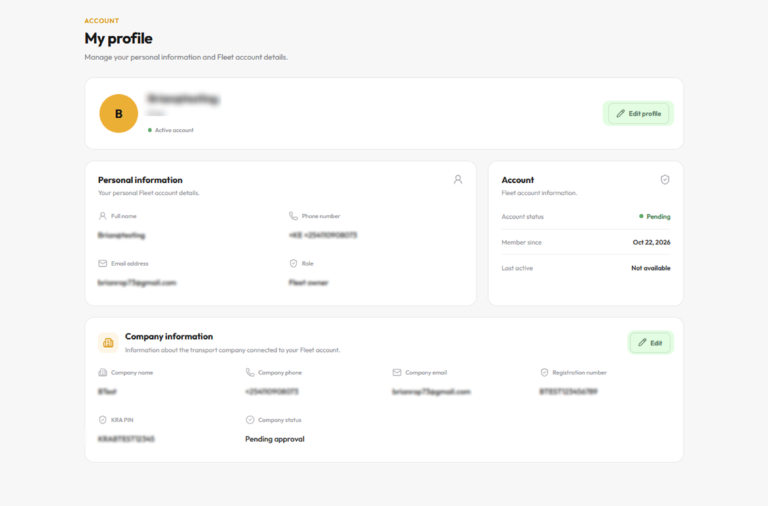
To review your account information and check its status, click the Profile button at the top-right corner of the Dashboard.
The My Profile page contains your personal information, account status and company information.
- To update your personal information, click Edit profile next to your profile avatar.
- To update the company information, click Edit at the top-right of the Company Information section.
- Check your account status in the Account section and your company status in the Company Information section.
- Tip
Return to My Profile whenever you need to review your personal details, company information or account status.
- Congratulations! Your Fleet Portal account is set up for review.
You have created your login, entered the fleet owner and company details, and submitted the listed company documents for review. Check the Dashboard for any outstanding account-setup message, and use Profile Access to monitor your personal account and company status. Access to cargo jobs is subject to fleet verification.